On this page · 9 sections
- 01How to read the page indexing report
- 02Statuses you can usually ignore: redirects, alternates, intentional noindex
- 03Duplicate without user-selected canonical, and Google-chosen canonicals
- 04Soft 404, not found (404) and server errors
- 05URL blocked by robots.txt and URL marked 'noindex'
- 06Crawled - currently not indexed
- 07Discovered - currently not indexed
- 08Validating a fix and getting Google to check again
- 09Monitoring indexing across many sites and clients

That distinction matters more now that AI answers draw on the search index: a page Google hasn't indexed can't appear in Google's results or its AI Overviews. This guide explains every page indexing status, which to ignore, how to fix the real page indexing issues, and how to confirm Google saw the fix. For the bigger picture, start with our Google indexing guide.
How to read the page indexing report
The page indexing report (Search Console > Indexing > Pages) has a chart of indexed and not-indexed URLs over time and a table of reasons why pages aren't indexed. Click any reason to see example URLs and inspect them one by one.
Google's Page indexing report help lists these reasons. Here's what each means in practice:
Reason (exact label) | What it means | Typical action |
|---|---|---|
Server error (5xx) | Your server failed when Googlebot requested the URL | Fix server or hosting issues |
Redirect error | Redirect chain too long, a loop, or a bad redirect URL | Fix the redirect |
Googlebot isn't allowed to crawl it | Ignore if intended; otherwise edit robots.txt | |
A | Ignore if intended; otherwise remove it | |
Looks like an error page but returns a 200 status | Return a real 404/410 or add real content | |
Blocked due to unauthorized request (401) | Login required | Ignore if private |
Not found (404) | The URL doesn't exist | Ignore if removed on purpose; otherwise restore or redirect |
Blocked due to access forbidden (403) | Server refuses Googlebot | Allow access if the page should be public |
Another client error | Investigate the response | |
Crawled - currently not indexed | Crawled, not stored, for now | Improve the page if it matters |
Discovered - currently not indexed | Known, not yet crawled | Improve crawl priority |
Alternate page with proper canonical tag | Correctly points to an indexed canonical | None |
Duplicate without user-selected canonical | Duplicate with no canonical declared | Declare a canonical if needed |
Google ignored your canonical | Check consistency of signals | |
Page with redirect | The URL redirects | None, if intended |
Two caveats from Google: the example list "is limited to 1,000 items" and "isn't guaranteed to show all URLs in a given status." On a large site, the report is a guide to patterns, not a complete inventory.
The report also has warnings for pages that are indexed, such as "Indexed, though blocked by robots.txt" and "Page indexed without content." Those deserve a look because Google indexed something it couldn't properly read.
Statuses you can usually ignore: redirects, alternates, intentional noindex
Page with redirect, Alternate page with proper canonical tag and intentional noindex pages are usually fine to leave alone, because they describe your site working as designed. Google's help page says the alternate status "correctly points to the canonical page, which is indexed, so there is nothing you need to do."
Ignore these when:
- Page with redirect: the URL is an old address you redirected on purpose (http to https, old slugs, trailing-slash variants).
- Alternate page with proper canonical tag: the URL is a variant, such as a parameter or tracking URL, a print version or an AMP page, pointing to the right canonical. Our guide to alternate page with proper canonical tag covers when it needs action.
- URL marked 'noindex': the page is a thank-you page, internal search result, account page or filtered listing you excluded deliberately.
Act only when an important URL shows up here by mistake: a key landing page that redirects, a canonical pointing to the wrong page, or a noindex left over from staging.
Duplicate without user-selected canonical, and Google-chosen canonicals
"Duplicate without user-selected canonical" means Google sees the page as a duplicate of another and you haven't said which version is preferred, so Google picked one. Google's help page describes this as working as intended, but the URL Google chose may not be the one you want. The full fix is in our guide to duplicate without user-selected canonical.
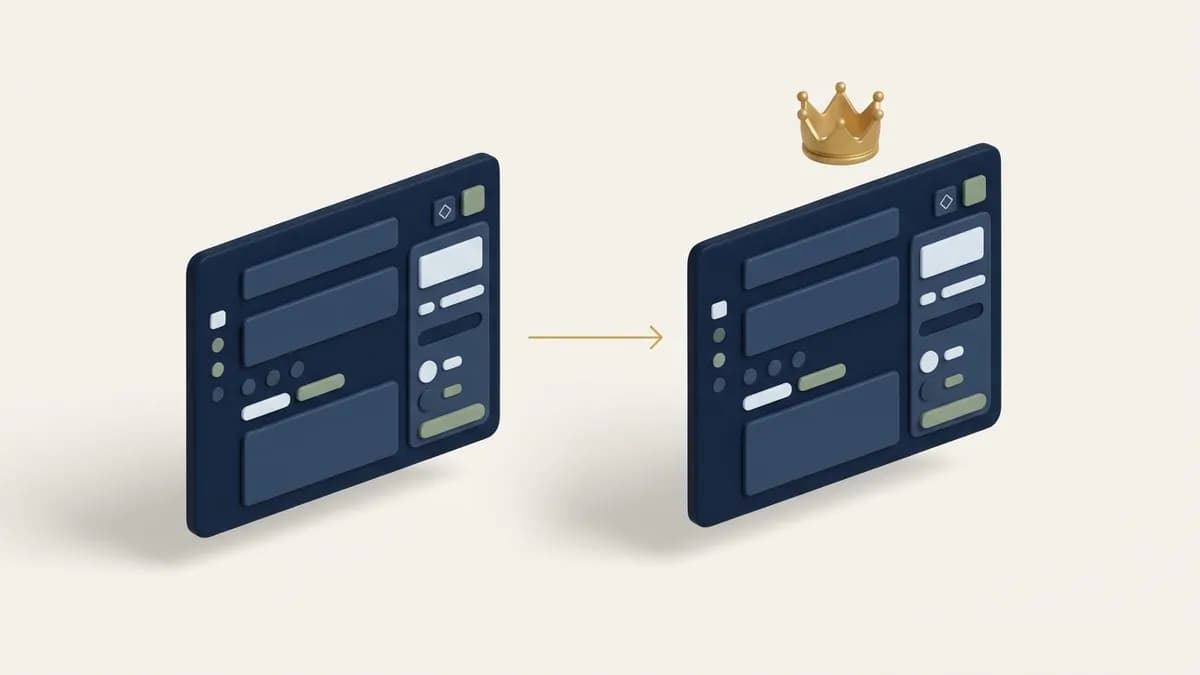
The related status, "Duplicate, Google chose different canonical than user," means you declared a canonical and Google picked another URL anyway. That usually happens when your signals disagree.
How to fix either:
- Inspect the URL in URL Inspection and compare the user-declared canonical with the Google-selected canonical.
- Decide which URL should be canonical, then make every signal agree: the
rel="canonical"tag, internal links, sitemap entries and redirects. Google's guide to consolidating duplicate URLs lists the methods. - If the pages aren't really duplicates, make them distinct. Templated location or product pages with only a name swapped often get folded together.
Soft 404, not found (404) and server errors
A soft 404 is a page that tells users "not found" (or has almost no content) but returns a 200 OK status code. Google treats it as an error and won't index it. A genuine Not found (404) is fine for pages you removed on purpose, while a Server error (5xx) means Googlebot couldn't get the page at all.
Status | Fix it when | How |
|---|---|---|
Soft 404 | The page should exist | Add real content, or fix the template that renders an empty state (empty category, out-of-stock product with no info) |
Soft 404 | The page is gone | Return a real 404 or 410 |
Not found (404) | Linked internally or listed in the sitemap | Restore it, redirect to the closest equivalent, or remove the internal links |
Server error (5xx) | Any important URL | Check server logs, hosting limits, firewall or bot-protection rules blocking Googlebot |
Server errors also slow crawling site-wide. Google's crawl budget guide says that if your site slows down or responds with errors, "the limit goes down and Google crawls less."
URL blocked by robots.txt and URL marked 'noindex'
"URL blocked by robots.txt" stops Google from crawling a page; "URL marked 'noindex'" lets Google crawl it but tells Google not to index it. They're different tools, and mixing them up is one of the most common page indexing issues.
Key rules from Google's noindex documentation:
- If you want a page out of the index, use
noindexand leave it crawlable. If robots.txt blocks the page, Google can't see thenoindextag, and the URL can still be indexed from links (that's the "Indexed, though blocked by robots.txt" warning). - If you want a page in the index, remove both the
noindex(meta tag orX-Robots-Tagheader) and any robots.txt rule covering it.
Common accidental blocks: a CMS "discourage search engines" setting left on after launch, a staging robots.txt deployed to production, an SEO plugin applying noindex to a whole post type, or a header added at the CDN.
Crawled - currently not indexed
"Crawled - currently not indexed" means Google fetched the page and decided not to index it for now. Google's help page says the page "may or may not be indexed in the future; no need to resubmit this URL for crawling."
Because Google already saw the page, resubmitting it unchanged usually gets the same answer. The usual causes are thin or near-duplicate content, weak internal linking, or a site-wide quality pattern. Our step-by-step guide shows how to fix crawled - currently not indexed.
Discovered - currently not indexed
"Discovered - currently not indexed" means Google knows the URL exists but hasn't crawled it yet. Google explains that "typically, Google wanted to crawl the URL but this was expected to overload the site," so it rescheduled the crawl.
On a handful of new pages this is normal. On thousands of URLs, or for weeks, it points to crawl priority: slow servers, huge URL inventories, weak internal links or a sitemap full of low-value URLs. See how to fix discovered - currently not indexed.
Validating a fix and getting Google to check again
After fixing a reason, click Validate fix in the page indexing report to ask Google to re-check the affected URLs, then inspect your most important URLs individually. Google says validation "typically takes up to about two weeks, but in some cases can take much longer."
How validation works:
- Fix every URL under the reason, not just a sample.
- Open the reason in the report and click Validate fix. Don't click it again until validation has passed or failed.
- Track the status: Not started, Started, Looking good, Passed, Failed or N/A. Each URL is marked Pending, Passed, Failed or Other.
- For priority pages, open the URL Inspection tool, run Test live URL to confirm the fix is visible, then click Request indexing. Google says there's a quota on individual submissions and repeated requests "won't get it crawled any faster" (Ask Google to recrawl your URLs).
- Re-check those URLs after a few days.
If Google can't read your sitemap in the first place, fix that before validating anything: our guide on what "Sitemap could not be read" means covers the causes.
If the issue is that your whole site is absent rather than a few URLs, work through website not showing up on Google first.
Monitoring indexing across many sites and clients
Monitoring indexing across many sites means checking the specific URLs you care about on a schedule, because the page indexing report is per property, samples 1,000 URLs and needs Search Console access you may not have for every client.
A workable routine for agencies and in-house teams:
- Keep a list of priority URLs per site: money pages, new content, recently updated pages and paid backlinks.
- Check them on a schedule and after every publish or update, recording the date and result.
- Investigate anything that drops from indexed to not indexed.
- Push the invisible ones, then re-check.
- Share the before and after with the client.
Our index checker guide compares the ways to do this. If you'd rather not run URL Inspection one page at a time, FreshlyCited's visibility check lets you check many URLs at once and shows which are seen by Google and which are invisible.
Check your own links free, and see which of your pages Google has actually indexed.

Written by